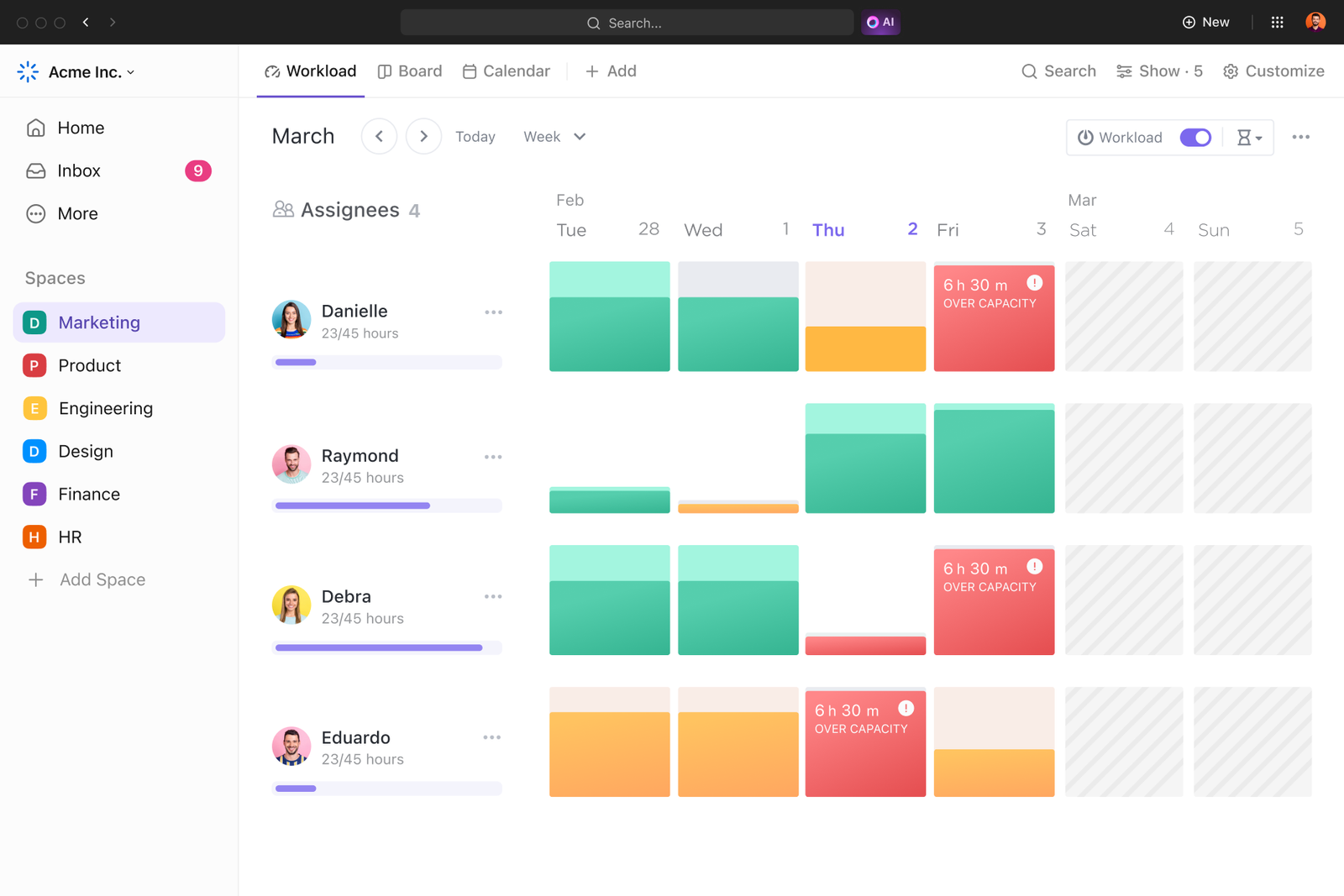
ClickUp is powerful because it’s flexible — which is wonderful until you open a workspace that looks like a digital junk drawer. This guide gives a clear, practical approach to organizing Spaces → Folders → Lists so your ClickUp workspace feels tidy, scalable, and actually helps people get work done.
Start with clarity: map your high-level structure
Think of ClickUp like a building:
Workspace = the building (company or umbrella org).
Spaces = departments or major functions (Marketing, Product, Ops).
Folders = projects or ongoing initiatives within a space.
Lists = specific workflows, sprints, or pipelines inside a folder.
Tasks / Subtasks = the work items.
Rule of thumb: make a Space represent a group of people or a major ongoing function. If something has a dedicated team or long-lived responsibilities, it’s a good candidate for its own Space.
Recommended Space strategy (a few common patterns)
By Function (best for medium/large teams)
Marketing, Sales, Product, Engineering, HR, Finance
Pros: Permissions, templates, and automations stay relevant to stakeholders.
By Product or Brand (good for agencies or product companies)
Product A, Product B, Client X, Client Y
Pros: Everything related to that product/client is grouped.
Hybrid (small teams)
One Space for “Operations” and another for “Client Work”
Keeps things simple without too many clicks.
Folders — manage projects, not single tasks
Folders sit inside Spaces and group Lists. Use Folders for collections that share a lifecycle or owner.
Examples:
In Marketing Space:
Social Campaigns 2026,Content Calendar,Ad Campaigns.In Product Space:
Q1 Roadmap,Feature: Release X,Bugs
Tips:
Prefer a small number of well-named folders over dozens of tiny ones.
Use a Folder to apply templates, views, or automations to multiple Lists.
If a project is truly one-off and short-lived, you can keep it as a single List without a Folder — but avoid stuffing unrelated Lists into the root of a Space.
Lists — the actual workflow lanes
Lists are where tasks live. Model Lists to match the flow of work:
By stage (e.g., Backlog, In Progress, QA, Done) — good for Kanban-style processes.
By sprint or timeframe (e.g., Sprint 12, Sprint 13) — good for engineering teams.
By client or deliverable (e.g., Client: Onboarding, Client: Maintenance) — good for agencies.
Practical layout:
Use one List per workflow with a consistent column/status setup.
Keep Lists short and focused. If a List grows beyond ~200 tasks, consider splitting it (by time or subproject).
Naming conventions: predictable is productive
A consistent naming scheme reduces friction. Examples:
Spaces:
Marketing,Product,Client — Acme Co.Folders:
2025 Q4 — Campaigns,Onboarding — New ClientsLists:
Backlog,Sprint 2025-12,Website: Tasks
Extra tips:
Use date prefixes for time-bound items:
2025-12 — Holiday Campaign.Use a clear delimiter when including owners or types:
Client — Acme | Website
Views, Custom Fields, and Templates — make structure work for you
Views: Create the views your team needs (Board for Kanban, List for queues, Gantt for timelines, Calendar for deadlines). Save them at the Folder or Space level when multiple Lists should share them.
Custom Fields: Add only the fields you’ll actually filter or report on (Priority, Client, Estimated Hours, Stage). Too many fields = noise.
Templates: Capture repeated structures (onboarding checklist, campaign brief) as List or Task templates so every new project starts cleanly.
Permissions & Guests — keep access sensible
Use Space-level permissions to limit who can see or edit sensitive Spaces (Finance, Legal).
Invite external clients as Guests in specific Lists or Folders instead of full Workspace members.
Keep default roles simple: Admins, Members, and Guests. Minimize ad-hoc sharing to avoid accidental access creep.
Automations and integrations — automate the repetitive
Automations are great, but they scale confusion if misused.
Start with 3–5 automations that remove manual steps (e.g., move to QA when checklist completes, notify Slack on task assignment).
Document automations in a shared Doc so the team knows what’s automatic vs. manual.
Integrate with calendars, Slack, GitHub, or other tools at the Space level where it’s most relevant.
Migration and clean-up rules
If you’re moving from another tool or cleaning a messy workspace:
Audit: identify active vs. stale Lists. Archive anything older than 12 months unless essential.
Standardize: rename a few high-traffic Lists to adopt the naming convention.
Template migration: create templates for recurring projects and replace duplicates.
One-time tidy: set an “Archive Day” where owners tidy their Lists; follow up with a short guide.
Quick examples (3 simple setups)
Freelancer
Space:
FreelanceFolders:
Active Clients,Prospects,AdminLists (under Active Clients):
Client — Acme | Projects,Client — Beta | Projects
Marketing Team
Space:
MarketingFolders:
Content,Paid Ads,EventsLists:
Content Backlog,Content Calendar,Ad Campaigns Q4
SaaS Product Team
Space:
ProductFolders:
Roadmap Q4,Bugs,ResearchLists:
Sprint 12,Sprint 13,Critical Bugs
Do’s and Don’ts — rapid checklist
Do:
Give Spaces clear owners.
Use Folders for grouping related Lists.
Save standard views and templates.
Limit custom fields to useful data.
Archive, don’t delete, when in doubt.
Don’t:
Create a Space for every tiny project.
Let dozens of unmanaged Lists accumulate in the Space root.
Add automations without documenting them.
Overload tasks with too many custom fields or attachments.
Wrap-up: keep it simple and iterate
The “right way” to structure ClickUp is the way that your team will actually follow. Start with a small, human-friendly structure:
3–8 Spaces,
a few Folders per Space,
Focused lists that mirror workflows.
Treat this structure like code: refactor every quarter. With clear names, a couple of templates, and simple automations, ClickUp becomes less of a tool and more of a muscle — one your team can use to move faster and with less friction.
FTC Disclosure: This article contains affiliate links and sponsored content. If you click an affiliate link and make a purchase, I may receive a commission (at no extra cost to you), learn more in our full affiliate disclosure.